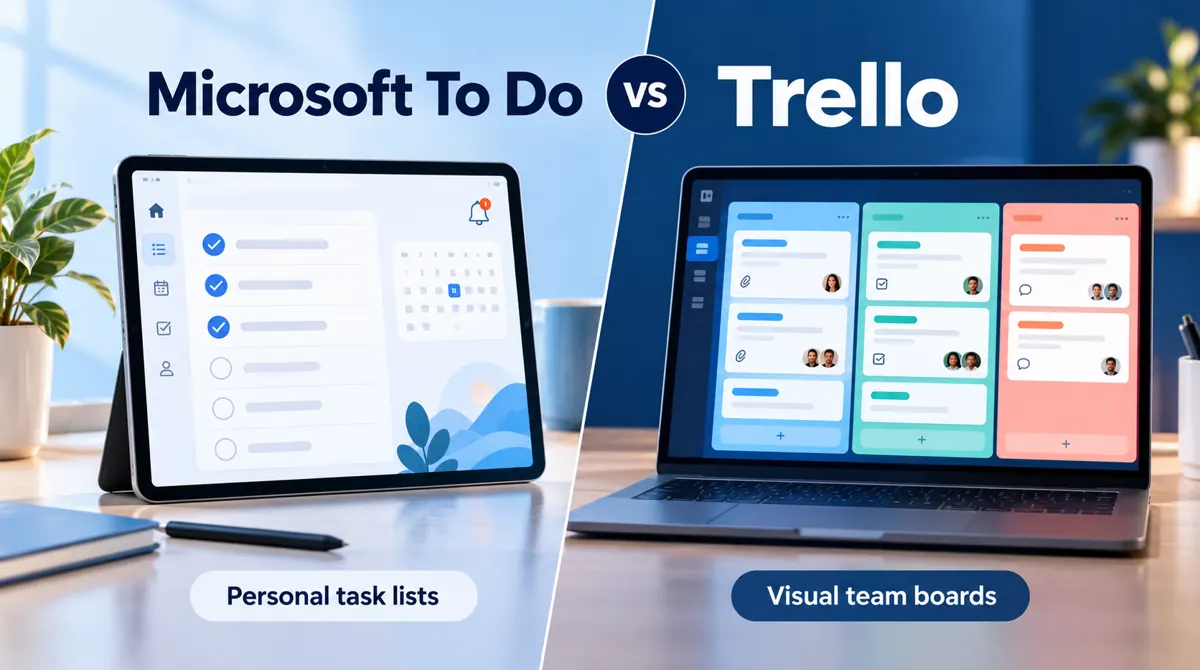
Microsoft To Do vs Trello: Which Should You Choose?
A reminder to send an invoice and a project involving three people may both look like tasks. Yet they need different kinds of organization.
The invoice needs a deadline and a reminder. The shared project needs a clear owner, a place for updates, and a way to show what happens next.
That is the most useful starting point for comparing Microsoft To Do vs Trello.
Microsoft To Do is a good choice for personal lists, daily priorities, and simple shared tasks. Trello is a stronger fit when you want to move work through stages and keep several people informed. Both can support individual and shared work, but they organize it differently.
This comparison is part of the practical software guidance on WhatsOnTech. It explains the differences through everyday examples, so you can choose a tool that fits how you actually work.
Comparison basis: official product documentation and published plan information checked in October 2026. The examples below illustrate possible workflows.
Microsoft To Do vs Trello at a Glance
| What matters to you | Microsoft To Do | Trello |
|---|---|---|
| Main way to organize work | Lists containing tasks and steps | Boards containing lists and cards |
| Daily priorities | My Day helps you select tasks to focus on | You can organize cards around your daily workflow |
| Simple collaboration | Shared lists and task assignments | Shared boards, card members, and comments |
| Tracking stages | Requires a list-based approach | Move cards between stages |
| Repeating work | Built-in repeat settings | Built-in recurring due dates |
| Best starting point | Personal reminders and straightforward lists | Visual projects and team handoffs |
| Main trade-off | Less suitable for following a multi-stage workflow | Needs some setup and regular board maintenance |
For a quick decision, think about the question you ask most often.
If it is “What do I need to finish today?”, start with Microsoft To Do.
If it is “Where has this piece of work reached, and who needs to act next?”, start with Trello.
How Microsoft To Do Organizes Your Work
Microsoft To Do starts with a familiar idea: write down a task, then check it off when you finish.
You can keep separate lists for different areas of your life. A freelancer might have lists for client work, business admin, and personal errands. Tasks can contain smaller steps, notes, deadlines, and reminders.
For example, a task called “Send the monthly invoice” could include these steps:
- Check the hours worked.
- Add any agreed expenses.
- Prepare the invoice.
- Send it to the client.
This keeps a small job together without turning it into a full project board.
My Day gives you a place to choose the tasks you want to focus on today. It is useful when your main lists contain more work than you could reasonably finish in one day.
The important habit is to choose a manageable amount. Putting every unfinished task into today’s list makes it harder to see your real priorities.
Microsoft To Do is a sensible starting point when you mostly need to remember, prioritize, and complete your own work.
How Trello Organizes Your Work
Trello gives each piece of work a card. Cards sit in lists on a board.
You decide what those lists mean. For a small publishing team, they might be:
Ideas → Writing → Review → Ready to Publish → Published
An article begins as an idea and moves across the board as people work on it. Its card can hold the brief, checklist, comments, and relevant attachments.
This makes progress easier to see. An editor can look at the Review list and find the articles that need attention. A writer can see whether a draft is waiting for feedback.
The board also makes delays more visible. If several cards are sitting in Review, the team can discuss that stage before starting even more drafts.
Trello works best when everyone understands what each list means. Too many lists, unclear labels, or old cards can make a board difficult to follow.
Start with the stages you already use. Add more detail only when it solves a real problem.
Which Is Better for Personal Use?
Microsoft To Do is usually the simpler choice for everyday personal tasks. Paying a bill, making an appointment, or remembering to send a document does not need a complicated structure.
A useful setup might include a few lists for work, home, and errands. You can then choose your immediate priorities in My Day.
Trello can also work well for personal use, especially when a project has several stages.
Consider a job search. Each application could have a card, with lists for roles to consider, applications sent, interviews, and decisions. That arrangement shows progress more clearly than a long list of application reminders.
The same approach can work for a home renovation or a personal writing project.
Choose based on the shape of the work:
- Use Microsoft To Do when you mostly need a list of actions.
- Use Trello when seeing the current stage adds useful information.
Working alone does not automatically make Microsoft To Do the better option. A solo project can still benefit from a board.
Which Is Better for Teamwork?
Trello is generally the stronger choice when a task passes between people.
Imagine a small business preparing a new product page. One person writes the description, another adds photographs, and someone else checks the page before publication.
A board can show the current stage, while the card keeps the discussion beside the work. This reduces the need to search through separate messages to understand why something is delayed.
Microsoft To Do shared lists suit lighter coordination. A pair of colleagues could use one to divide a short event checklist or keep track of routine office tasks.
However, check account compatibility before building a shared workflow. Microsoft’s current support guidance lists sharing between personal Microsoft accounts and between work or school accounts within the same organization.
Do not assume that an outside client can join a work list simply because they have an email address.
For either app, try sharing a small sample task with the people involved before moving a real project.
Reminders, Due Dates, and Recurring Tasks
Both apps can help with deadlines and repeating work.
Microsoft To Do lets you add due dates, reminders, and repeat settings. That makes it suitable for routine actions such as sending a weekly report or checking a monthly payment.
A due date tells you when something must be finished. A reminder tells you when to pay attention to it. Those may need to be different times.
For example, a report due on Friday may deserve a reminder on Wednesday so that you have time to prepare it.
Trello supports dates and due-date reminders on cards. It also has built-in recurring due dates. When you complete a recurring card, its due date advances according to the repeat schedule.
You do not need an automation rule or Power-Up for that basic recurring-date feature. However, Atlassian’s current instructions say new recurring due dates must be set up on the web; mobile users can interact with cards already configured to repeat.
Whichever app you choose, check notification permissions on your device. Create a harmless test reminder before relying on the app for an important deadline.
Free Plans and Paid Features
Microsoft To Do is free with a personal Microsoft account. Work and school access depends on the organization’s supported account and licensing setup.
Trello offers a free plan alongside paid plans. Its free Workspace supports up to 10 collaborators and 10 boards, with unlimited cards. File attachments are limited to 10 MB each, and automation is limited to 250 Workspace command runs per month.
That collaborator limit applies to the Workspace, so check the total people involved across it.
At the time of checking, Trello Standard costs $5 per user per month with annual billing, or $6 with monthly billing. Premium costs $10 per user per month annually, or $12.50 monthly.
Standard adds features such as unlimited boards, advanced checklists, and custom fields. Premium adds broader views and administration features.
Check the official Trello pricing page before subscribing, as prices and plan details can change.
For a small trial, begin with the free option. Upgrade when you can name the specific limitation that is slowing down your work.
Outlook and Other Connections
Microsoft To Do is worth considering if you already organize much of your work in Outlook.
Supported Microsoft account setups connect tasks between Outlook and To Do. Flagged email can also help you turn messages into actions.
For example, a client’s request may arrive by email. Turning it into a task gives you a place to add a deadline and remember the next action.
Trello offers Power-Ups and integrations that extend how boards work. These can be helpful when your team needs to connect a board to other tools.
However, an available integration does not always mean that every feature is free. Check the provider, permissions, and any additional subscription before making it part of your process.
Start with the app’s basic workflow. Add connections when they remove a clear piece of repeated work.
A Practical Example: Managing a Small Blog
Suppose you publish several articles each week.
If you handle everything yourself, Microsoft To Do could be enough. Create a task for each article and add steps for research, drafting, editing, images, and publication.
This arrangement gives you a straightforward checklist. It works especially well when only a few articles are active at once.
Now imagine that a writer, editor, and publisher share the work.
Trello becomes more useful because each article can move through the publishing stages. The editor can find drafts awaiting review, and the publisher can see which articles are ready.
A practical rule would be:
Move an article into Ready to Publish only after the text, links, and images have been checked.
That rule matters more than the board’s appearance. Without a shared understanding, one person may think “ready” means the draft exists while another thinks every check is complete.
For a solo blog, choose the tool you will keep updated. For a shared blog, give more weight to clear handoffs.
Strengths and Limitations to Consider
Microsoft To Do’s main strength is its focused approach. It gives ordinary tasks a home without asking you to design a detailed system.
Its limitation becomes clearer when you need to follow work through several stages. You can organize that work with lists, but the arrangement may become awkward as the project grows.
Trello makes those stages easier to see. Cards give people a shared place to discuss a particular item.
Its flexibility also creates extra decisions. Someone must choose the board structure, explain the rules, and keep old work from building up.
Neither tool will fix unclear ownership. Even on a shared board, agree who is responsible for the next action.
If a project needs formal resource planning, detailed dependency scheduling, or extensive reporting, evaluate those requirements separately before committing to either app.
Can You Use Microsoft To Do and Trello Together?
Yes, provided each app has a clear role.
A team could manage shared projects in Trello while an individual uses Microsoft To Do for private reminders and personal priorities.
For example, the project card stays in Trello. A personal reminder to review it before a meeting stays in Microsoft To Do.
Avoid maintaining two complete copies of the same project. Dates and status can drift apart when people update only one place.
Decide which app holds the authoritative task details. If you use an integration, check which changes it transfers and whether updates flow in one direction or both.
For many people, one well-maintained app is enough.
How to Choose Without Moving All Your Tasks
Try one small, real workflow before making a full switch.
Choose work that includes a deadline, several steps, and a handoff if teamwork matters to you. Keep sensitive information out of the trial.
During the trial, notice how easily you can:
- Find the next action.
- See what is overdue.
- Explain a task to someone else.
- Update progress without extra effort.
- Locate the notes you need.
After a few days, ask which app reduced confusion.
A useful task manager should make the work easier to follow. If you spend more time maintaining the system than using it, simplify the setup.
Compare Microsoft To Do vs Trello Fully Guide.
Frequently Asked Questions
Is Microsoft To Do better than Trello?
Microsoft To Do is often a better fit for simple lists and personal reminders. Trello is usually more useful for visual workflows involving stages, updates, and handoffs. The right choice depends on how you organize your work.
Is Microsoft To Do free?
Yes, it is free with a personal Microsoft account. Work and school users should check whether their organization provides a supported account and the required services.
Is Trello free for a small team?
Trello has a free plan that supports up to 10 collaborators per Workspace. It also has limits on boards, attachment size, and automation. Check those limits against your actual workflow.
Can Microsoft To Do assign tasks to other people?
Yes. You can assign tasks to members of a shared list. Check that the participants’ account types support sharing before setting up the list.
Does Trello support recurring tasks?
Yes. Trello supports recurring due dates that advance when a recurring card is completed. Current documentation says setup for new recurring due dates is available on the web.
Which app is better for students?
Microsoft To Do is a sensible choice for assignment reminders and study checklists. Trello can be useful for group projects where research, writing, and review happen in separate stages.
Is Microsoft To Do the same as Microsoft Planner?
No. They are separate Microsoft products. To Do centers on individual task management, while Planner provides tools for organizing plans and teamwork. Check Planner separately if your main need is shared project planning within Microsoft’s ecosystem.
Which app should a freelancer choose?
Choose Microsoft To Do if your main need is remembering deadlines and finishing a personal list. Consider Trello when you manage several projects through repeatable stages or need clients and collaborators to follow progress.
Which One Should You Choose?
Start with Microsoft To Do if you want a straightforward place for reminders, priorities, and small shared lists.
Choose Trello if your work benefits from visible stages and a shared record of progress.
Before moving everything, use one real project to check the fit. The better choice is the app that makes your next action clear and helps everyone involved understand what happens next.